Block Tor Exit Nodes in WordPress and Get the Real Client IP Right
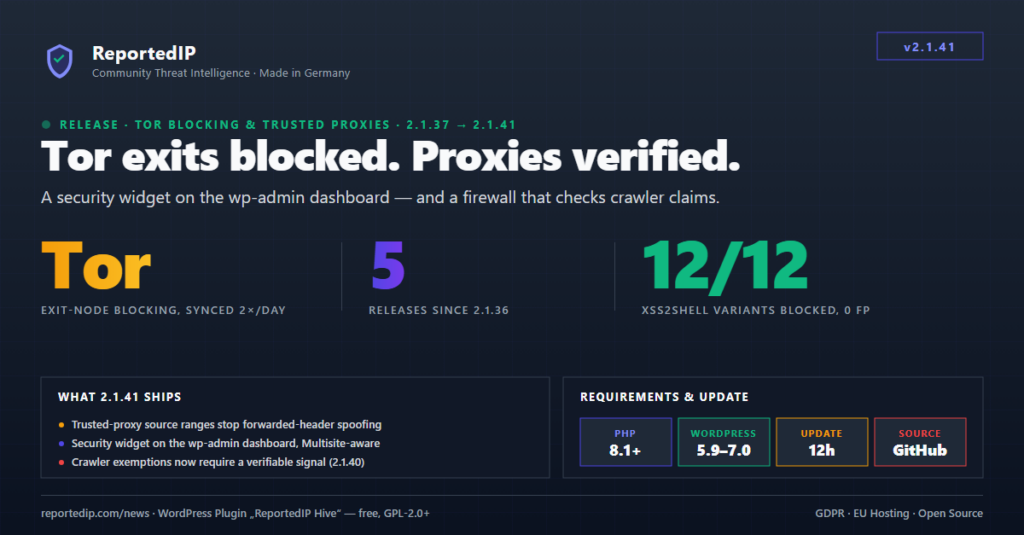
Blocking Tor exit nodes in WordPress stops login attempts that arrive through the Tor network, but it only works if the site sees the real visitor address in the first place. This guide explains how Tor exit blocking works in ReportedIP Hive, when it is worth switching on, where its limits are and how to set up the client IP correctly behind Cloudflare or another proxy.
What is a Tor exit node?
Tor routes traffic through three relays before it reaches a website. The last one, the exit node, is the address your server sees. The Tor Project publishes the current exit addresses in its bulk exit list. On 29 September 2026 that list contained 1,389 addresses, all of them IPv4. Relays join and leave the network constantly, so the list changes every few hours.
For a WordPress site this means: every request from Tor comes from one of about 1,400 known addresses, shared by many users at the same time. An IP block against a single Tor attacker would hit everybody using the same exit, and a new attacker simply switches to the next exit.
Should you block Tor on a WordPress site?
Tor is not an attack. Journalists, people in countries with censorship and users who simply value privacy use it every day. The Tor Project’s abuse FAQ makes the same point: blocking all of Tor punishes these users for the actions of a few.
For the login page, the balance is different. Hardly any genuine editor signs in to their own WordPress site through Tor, while attackers like it because every guess comes from a fresh address. A reasonable rule is therefore:
| Situation | Recommendation |
|---|---|
| Nobody on your team uses Tor to sign in | Tor exit blocking makes sense. |
| Authors or customers sign in over Tor | Leave it off and require two-factor authentication instead. |
| You only want to read the site’s traffic | Start with report-only mode and look at the log. |
Readers are not affected either way: the check runs at sign-in, not when somebody reads a page. A second factor such as a passkey protects the account even when the attacker’s address is unknown, which is why many sites combine both.
How Tor exit blocking works in ReportedIP Hive
ReportedIP Hive offers Tor exit blocking on the Professional plan and above, in Community Network mode. The site receives a signed list of exit addresses from reportedip.com through the regular rule sync. On the server the list is rebuilt twice a day from the Tor Project’s exit list and only published when a download was complete, so a broken fetch never replaces a good list. Every ruleset is checked against its signature before Hive applies it.
What happens in practice:
- Someone tries to sign in with an existing username from an address on the exit list.
- Hive refuses the login with “Access denied: connections from Tor exit nodes are not allowed on this site.”
- The address is blocked for 24 hours. During that time it sees the regular Hive block page on the whole site.
- The Event Log records “Blocked Tor Exit Node”, and the address appears under Blocked IPs with the reason “Tor exit node”.
If an address is not on the list yet, the live check against the community network can still flag it as a Tor exit. Tor blocks are never reported to the community, because the exit address belongs to many people, not to one attacker. Whitelisted addresses and your own server address are always exempt.
The switch is Block Tor exit nodes under ReportedIP Hive > Protection, card Blocking & Escalation. It is visible once you switch on Expert mode. It is off on a new install; running the Quickstart or upgrading to Professional switches it on, as long as you have not changed it before. With Report-only mode in the same card, Hive logs “Would Block Tor Exit Node” instead of blocking, which is the safe way to test.

What Tor exit blocking cannot do
- Only logins with a real username trigger it. WordPress checks the address after it has found the account, so guesses with unknown usernames are handled by the brute-force block ladder instead.
- IPv6 exits are not on the list. The Tor Project’s list currently contains IPv4 addresses only, so a Tor user who leaves over IPv6 is not recognised.
- The list is a few hours old. A brand-new exit relay can slip through until the next update.
- Tor behind a VPN stays invisible. Anyone who routes Tor through a VPN or a private proxy arrives from a different address.
- Other attacks run through other sensors. Form spam, scans and injection attempts from Tor are stopped by the firewall and the other attack sensors, not by the Tor switch.
Why every IP block depends on the real client IP
Behind Cloudflare, a load balancer or a reverse proxy, the connection to your server comes from the proxy, not from the visitor. Without further settings, WordPress sees the same few proxy addresses for everybody. Tor blocking would then never match, and any other IP block could lock out the proxy and with it all your visitors.
The proxy passes the real address in a header. Hive can read it from four headers:
| Header | Set by | Recommendation |
|---|---|---|
| CF-Connecting-IP | Cloudflare | The right choice behind Cloudflare. |
| X-Real-IP | nginx as a reverse proxy | Good, if your proxy sets it itself. |
| X-Forwarded-For | Many proxies and load balancers | Only if the proxy rewrites the header. |
| Client-IP | Some older proxies | Only if nothing else is available. |
The risk is spoofing. A header is only text, and anybody can send CF-Connecting-IP: 192.0.2.1 straight to your server. That is why Hive also asks for the addresses of your proxies and only trusts the header when the connection really comes from one of them. X-Forwarded-For needs extra care: Hive reads the first address in it, and a proxy that only appends to the header leaves that first entry under the client’s control. MDN describes this risk in its security notes. The standardised Forwarded header from RFC 7239 is not read by Hive.
How to set up the client IP in Hive
Both settings sit under ReportedIP Hive > Protection, card Detection & Thresholds, in Expert mode:
- Client IP header: the header your proxy sets, for example the Cloudflare option. Leave it empty if the site has no proxy in front of it.
- Trusted proxy ranges: the addresses or CIDR ranges of your proxies, one per line, IPv4 and IPv6. For Cloudflare, copy the ranges from the official Cloudflare IP list.
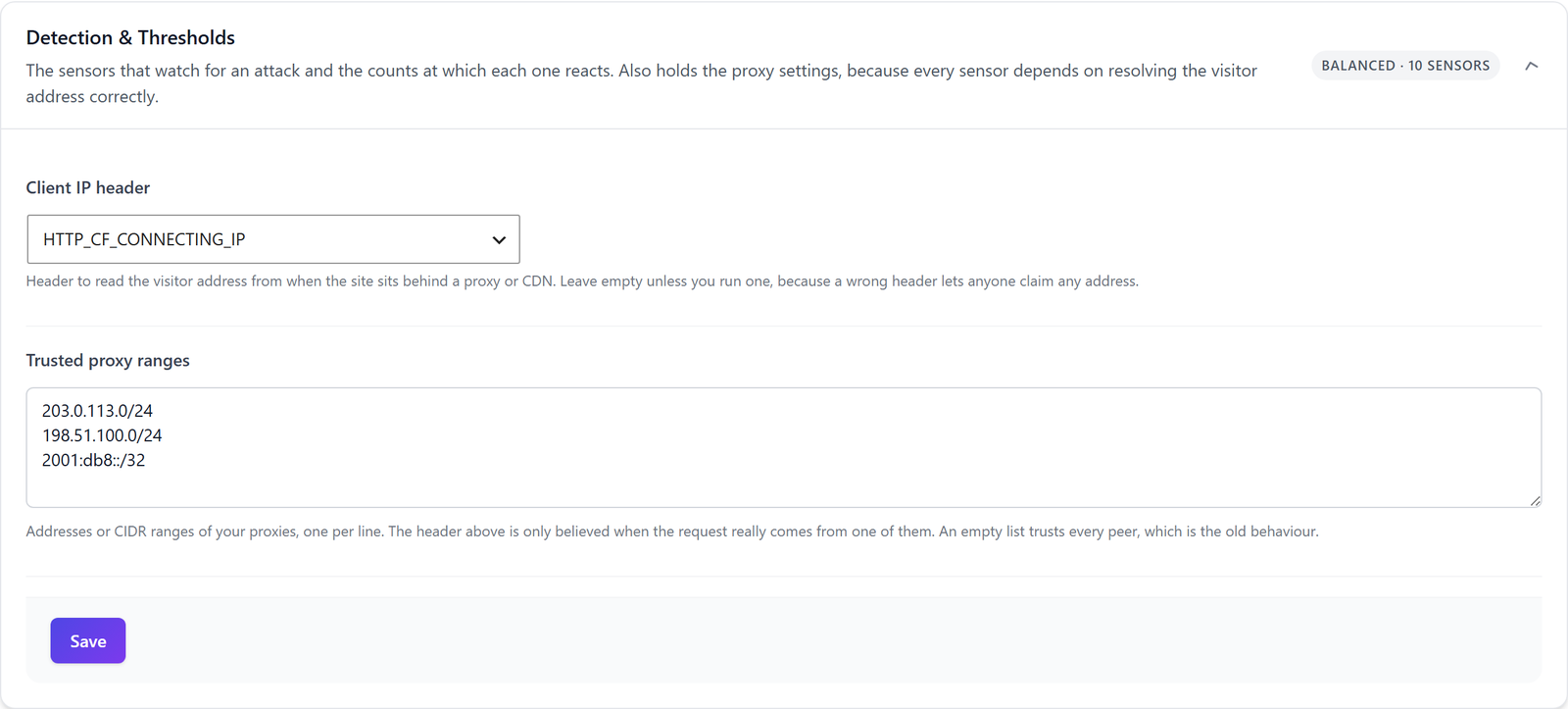
If a header is set but the list of proxies is empty, Hive trusts the header from anyone and shows a permanent warning under System Status. Internal addresses in the header are ignored, and the same setting applies to Extended Protection before WordPress. Cloudflare’s guide to restoring visitor IPs explains the server side if you also want correct addresses in your web server log.
A setup checklist
- Check whether a proxy or CDN sits in front of the site and set the client IP header and trusted proxy ranges accordingly.
- Put your own office or home address on the whitelist.
- Make sure the site runs in Community Network mode on the Professional plan or above.
- Switch on Block Tor exit nodes together with Report-only mode for a week.
- Look for “Would Block Tor Exit Node” events in the Event Log. If one belongs to a real team member, give them another way in or leave Tor blocking off.
- Switch off report-only mode.
- Require two-factor authentication for administrators either way.
Keeping an eye on it from the dashboard
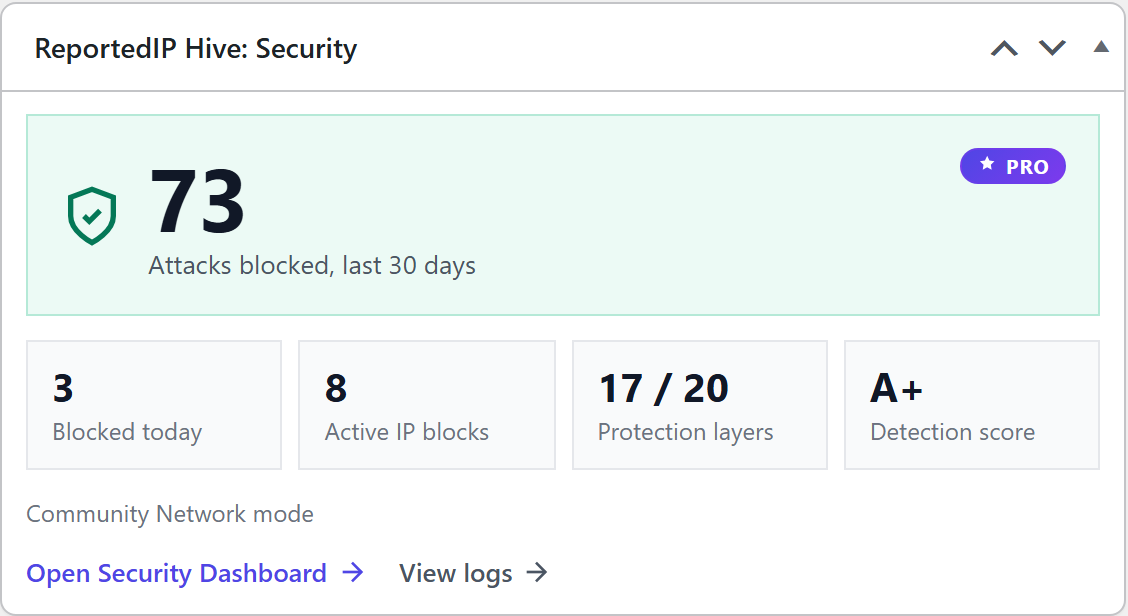
The widget ReportedIP Hive: Security on the WordPress dashboard shows the attacks blocked in the last 30 days, blocks today, active IP blocks, active protection layers and the detection score as a grade. It is available on every plan and links to the security dashboard and the logs. On a multisite network it shows network-wide numbers to super admins.
Questions about blocking Tor in WordPress
Does blocking Tor exit nodes also block VPN users?
Blocking Tor exit nodes does not affect VPN users. The list contains only the public exit addresses of the Tor network, about 1,400 at the moment. Commercial VPNs use their own addresses, which are not on it. A VPN address is only blocked if it attacks the site itself and runs into another Hive sensor.
Can Tor users still read my WordPress site?
Tor users can read the site as long as they do not try to sign in. The check runs during a login with an existing username. Only after such an attempt is the exit address blocked for 24 hours on the whole site, which then also affects other Tor users leaving through the same exit during that time.
Is Tor exit blocking available on the free plan?
Tor exit blocking needs the Professional plan or higher and Community Network mode, because the exit list is delivered through the signed rule sync. The client IP settings for proxies and the dashboard widget are free on every plan. The pricing page compares all plans.
Does Tor blocking stop brute-force attacks?
Tor blocking stops brute-force attempts that come through Tor and use an existing username. Attacks from botnets, hosting providers or with guessed usernames are handled by the progressive block ladder, rate limits and two-factor authentication. Tor blocking is one layer among several, not a replacement for them.
Read on
The Hive documentation covers rule delivery and the operating modes in detail. All other features are explained in the ReportedIP Hive plugin guides.