WordPress Two-Factor Authentication With App, Passkey or YubiKey

WordPress two-factor authentication in ReportedIP Hive offers four methods in the plugin itself: an authenticator app, a passkey or security key, an e-mail code and an SMS code. App, passkey and e-mail are free on every plan, so no admin account needs to rely on a password alone.
This guide shows how to switch 2FA on for your site, how users enrol, what the sign-in looks like and how to keep an eye on who is protected. Separate guides go deeper into passkeys and YubiKey setup.
Why does WordPress need two-factor authentication?
Passwords leak, get reused and get guessed. Once an attacker has the password of an administrator, WordPress hands over everything: plugins, users, content and often the server behind it. A second factor closes that door, because the stolen password alone no longer signs anyone in. The NIST Digital Identity Guidelines (SP 800-63B) describe multi-factor authentication as the baseline for any account with elevated rights.
Which 2FA methods does ReportedIP Hive support?
| Method | How it works | Plan |
|---|---|---|
| Authenticator app | An app such as Google Authenticator, Microsoft Authenticator or 1Password shows a new 6-digit code every 30 seconds, even without mobile signal | Free |
| Passkey or security key | Fingerprint, face or a hardware key such as a YubiKey confirms the sign-in, and it only works on the real sign-in page | Free, one key per account |
| Email code | A 6-digit code goes to the e-mail address of the account | Free |
| Text message (SMS) | A 6-digit code goes to the mobile phone, delivered through the EU relay | Professional |
Users can set up more than one method. The one marked as default is asked for first; every other active method stays available on the sign-in screen as an alternative. Several security keys per account, for example a backup key in a safe, are part of the Business plan.
Recovery codes and trusted devices back every method
Every user receives 10 single-use recovery codes for the day the phone is lost or the key is left at home. The profile warns when only a few are left and offers new ones with Generate new recovery codes. On the sign-in screen, Trust this device skips the second factor on that browser for a set number of days, and Revoke all devices in the profile ends every trust at once.
How to switch on 2FA for your WordPress site
Open Protection, card Two-Factor Authentication. The normal view has three settings:
- Two-factor authentication enabled is the master switch. Off, nobody is asked for a second factor.
- Roles required to use 2FA lists the roles that must enrol. Everyone else may and is invited to.
- Themed second factor on the storefront asks WooCommerce customers inside your theme instead of on wp-login.php, on the Professional plan.
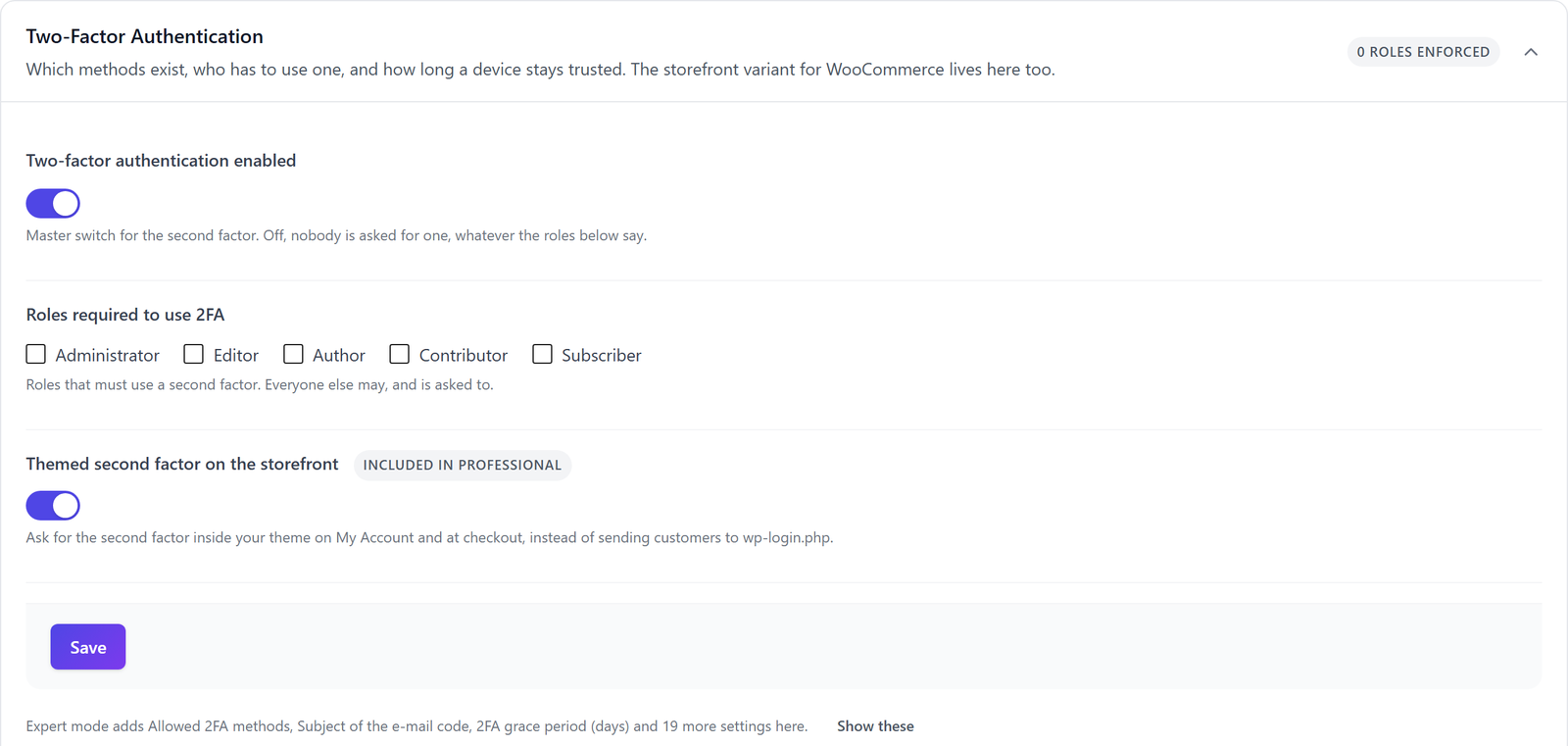
Expert mode in the page header adds the finer controls: Allowed 2FA methods, the 2FA grace period (days) a required user has before enrolment is enforced, the Maximum onboarding skips, the lifetime of trusted devices and whether 2FA is also required on password reset. The quickstart already switches on 2FA for administrators with a 7-day grace period, so on a fresh install you mostly add further roles.
How users set up their second factor
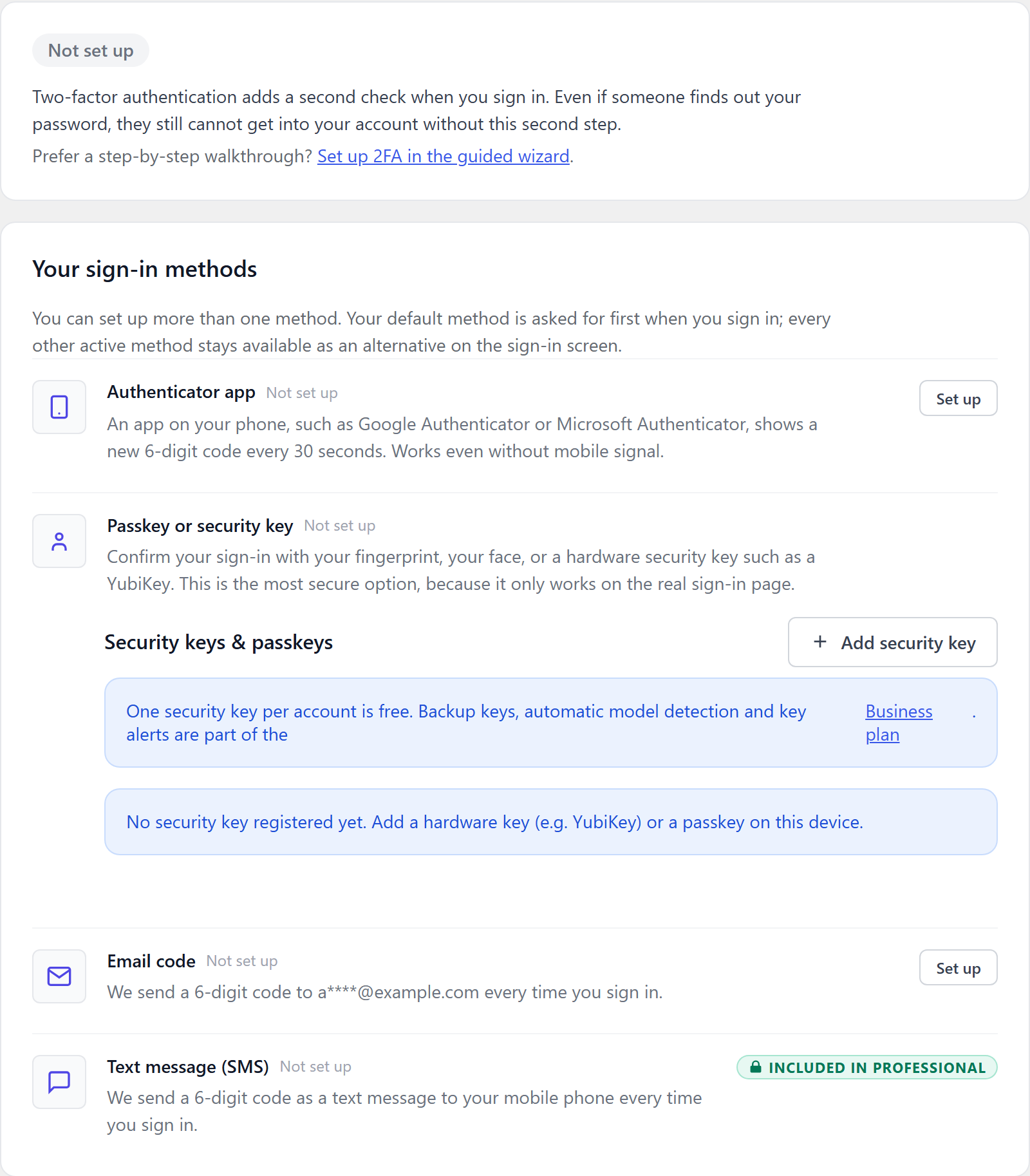
A user who has to enrol is taken to a guided setup after the next sign-in, which walks through choosing a method, scanning the QR code or registering the key, and saving the recovery codes. The same can be done at any time in the WordPress profile, section Your sign-in methods: each method has a Set up button, the security key manager sits under Security keys & passkeys, and Make default picks the method the sign-in asks for first.
What the sign-in looks like with 2FA
After the correct password, WordPress shows the page Verification required with a tab for each active method. For the app, the user types the current code. For a passkey or key, the browser opens its own dialog. For e-mail and SMS, the user first presses Send code by email or Send code by SMS, so no code is sent until someone actually asks for it. The recovery tab accepts one of the saved codes.
Wrong codes are slowed down with a growing delay and, if they keep coming, lead to a block of the address. Guessing a 6-digit code is therefore not a practical way in.
Keep track of who is protected
The page 2FA Status shows at a glance how many users have 2FA, how many do not, who is still in the grace period, who has used up all skips and who is running low on recovery codes. The table below lists every user with role, methods, remaining recovery codes and enrolment status, and filters by status, method and role.
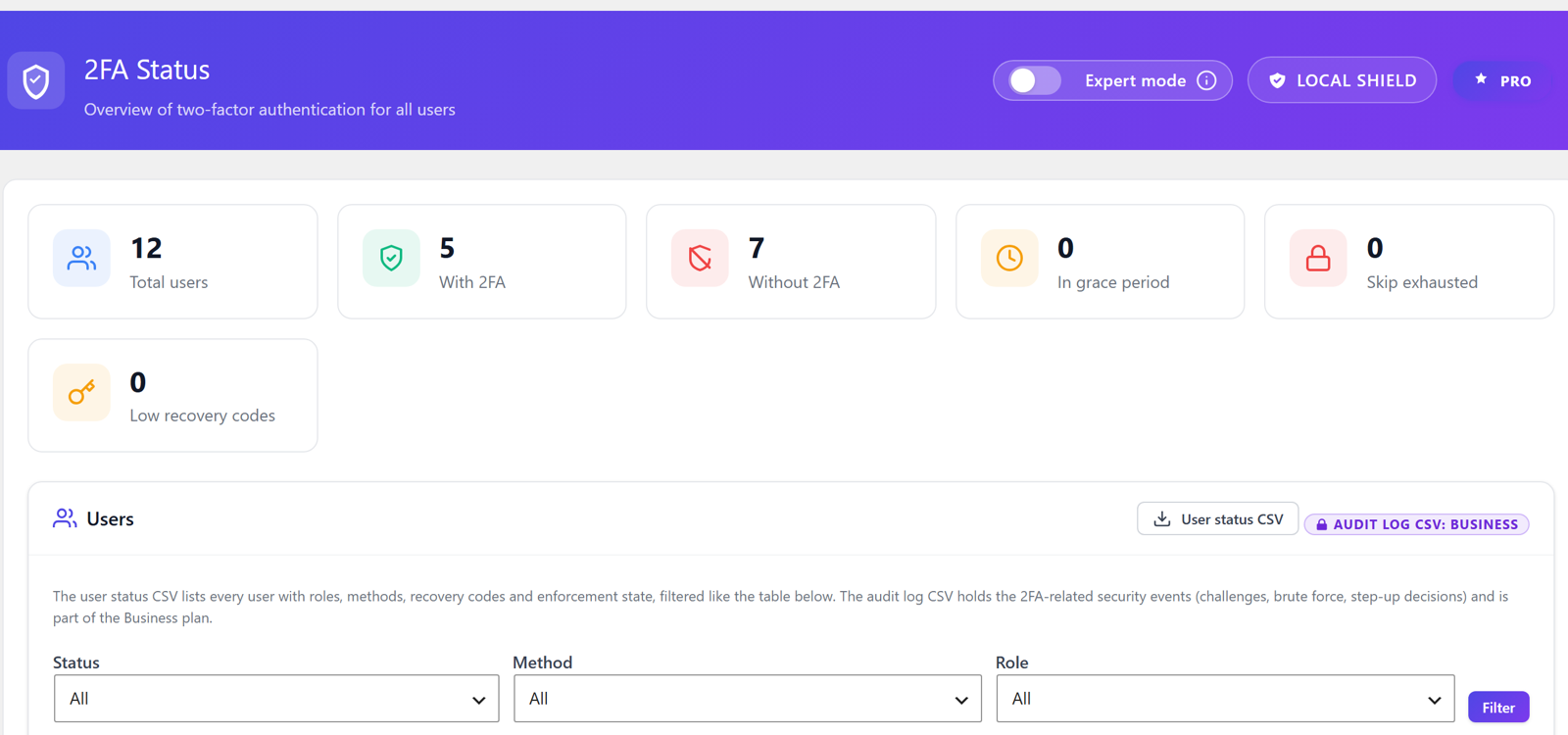
User status CSV exports that table on every plan, for an audit or a customer report. The audit log CSV with every 2FA event is part of the Business plan.
The password reset gate closes the e-mail bypass
The lost-password link is the classic way around 2FA: whoever controls the mailbox gets the reset link and, with e-mail 2FA, the code as well. Hive therefore asks for a second factor that is not e-mail before a new password is accepted: an app code, an SMS code, a security key or a recovery code. If a user has none of these, the reset is refused and the administrator receives a mail, instead of the user ending up in an endless loop of invalid codes.
Passkeys and hardware keys in short
A passkey or security key is the one second factor that cannot be phished, because the key refuses to sign for a look-alike domain. Hive supports platform passkeys such as Face ID, Touch ID and Windows Hello as well as FIDO2 hardware keys such as the YubiKey 5 series, over USB and NFC, on wp-login, on the WooCommerce storefront and on the password reset gate. A security key that is copied out of its hardware is detected and the sign-in refused. The guides on passkeys for WordPress and on the YubiKey 5C NFC cover setup and troubleshooting.
WP-CLI and REST for agencies and custom logins
Administrators with shell access manage 2FA with wp reportedip 2fa: status, enforce --role=editor, reset <user_id> for a locked account and audit for an overview. Headless and custom login flows use the REST namespace reportedip-hive/v1 with the routes /2fa/challenge, /2fa/verify and /2fa/methods for the code-based methods; passkeys need the browser and stay on the normal sign-in page.
Questions about WordPress two-factor authentication
Which 2FA method should administrators use?
A passkey or hardware security key gives the strongest protection, because it cannot be phished or read off a screen. An authenticator app is the next best choice and works offline. E-mail codes are convenient but share a channel with the password reset, so keep them as a fallback rather than the only method.
What happens if a user loses their phone?
The user signs in with one of the 10 recovery codes and sets up the new phone in the profile. If the codes are lost as well, an administrator resets the second factor for that user with the WP-CLI command, and the user enrols again at the next sign-in.
Can I require 2FA only for administrators and editors?
Tick exactly those roles under Roles required to use 2FA. Users with other roles are invited to enrol but not forced. The grace period gives required users time to set up a method before the sign-in insists on it, and the 2FA Status page shows who is still missing.
Does 2FA work with WooCommerce customer accounts?
On the Professional plan, Themed second factor on the storefront asks customers for their second factor on My Account and at checkout, inside your theme. Customers never see wp-login.php, and the same methods, recovery codes and trusted devices apply as for staff accounts.
Read on
- WooCommerce 2FA in your theme
- Mail and SMS relay for 2FA
- The Hive quickstart
- Progressive IP blocking
The Hive documentation covers two-factor authentication, hardware security keys and the headless 2FA REST routes in detail.