WooCommerce Two-Factor Authentication That Stays in Your Shop’s Style
WooCommerce two-factor authentication with ReportedIP Hive asks customers for their second factor on a page in your shop’s style, not on the bare WordPress login screen. It covers the My Account login, the classic checkout and the block checkout, and sends customers straight back to where they were.
This guide explains which logins are protected, what customers see, how they enrol, and how to switch the feature on. It is part of the Professional plan.
Why does standard WordPress 2FA hurt a WooCommerce shop?
Most 2FA plugins send every login through wp-login.php. For a shop that means a customer who signs in at checkout suddenly lands on a grey WordPress screen with a different logo, then has to find the way back to the cart. Customer accounts are worth protecting, because they hold addresses, order histories and often saved payment references, but a second factor that looks like a different website makes people abandon the purchase or distrust the shop.
Which WooCommerce logins are protected?
| Login surface | Second factor |
|---|---|
| My Account login | Shop-styled challenge page |
| Classic checkout login | Shop-styled challenge page, then back to checkout |
| Block checkout login | Shop-styled challenge page, then back to checkout |
| wp-login.php, for example staff | The standard WordPress challenge |
Only logins that start in WooCommerce are sent to the shop-styled page. Staff who sign in through wp-admin keep the normal challenge, so one site can serve both groups without extra setup.
What customers see during the sign-in
After the correct password, the customer lands on a dedicated verification page that loads your theme’s stylesheet, so fonts and colours match the shop. It shows the methods the customer has set up, the option to trust the device and a way back to the sign-in. For an e-mail code, nothing is sent until the customer presses Send code by email.
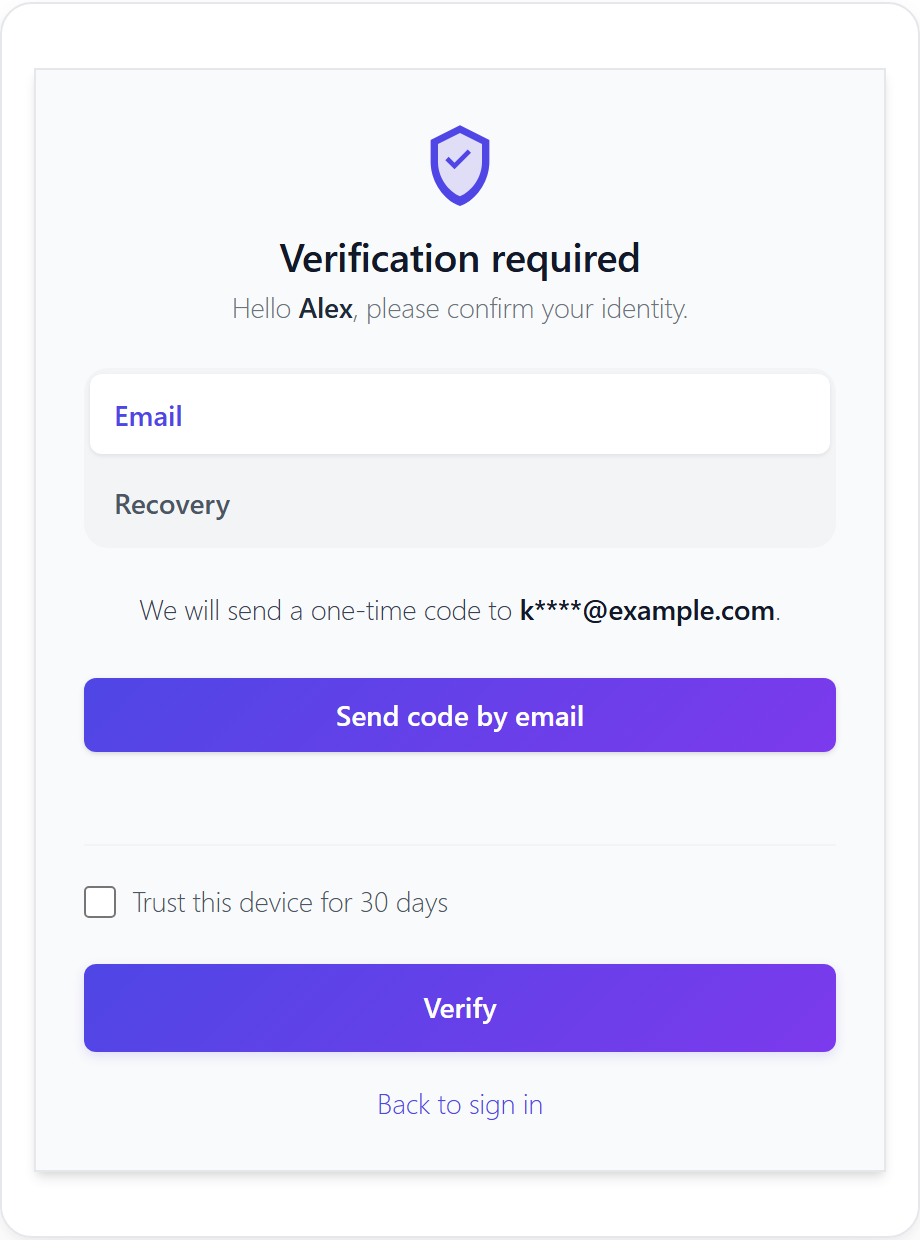
After verifying, the customer returns to My Account or, if the login happened during checkout, to the checkout. The cart stays as it was, because the WooCommerce session is not touched by the verification.
How customers set up their second factor
Customers and subscribers who have to use a second factor are guided to a setup page in the shop, instead of being sent into wp-admin. The page walks through choosing a method, scanning the QR code or registering a passkey, and saving the recovery codes. Once a method is active, the page sends the customer back to My Account.
Customers can use the same methods as staff: an authenticator app, a passkey or security key and an e-mail code on every plan, plus SMS codes through the EU relay on the Professional plan and above in Community Network mode. Recovery codes and trusted devices work the same way as on wp-login.php, and a device trusted at checkout is also trusted on the next wp-login.php sign-in.
How to switch on WooCommerce 2FA
- Open Protection, card Two-Factor Authentication.
- Turn on Two-factor authentication enabled if it is not on yet.
- Turn on Themed second factor on the storefront.
- Under Roles required to use 2FA, tick Customer if every customer must use a second factor. Without it, customers may enrol but are not forced to.
- Save and test the flow with a test customer account.
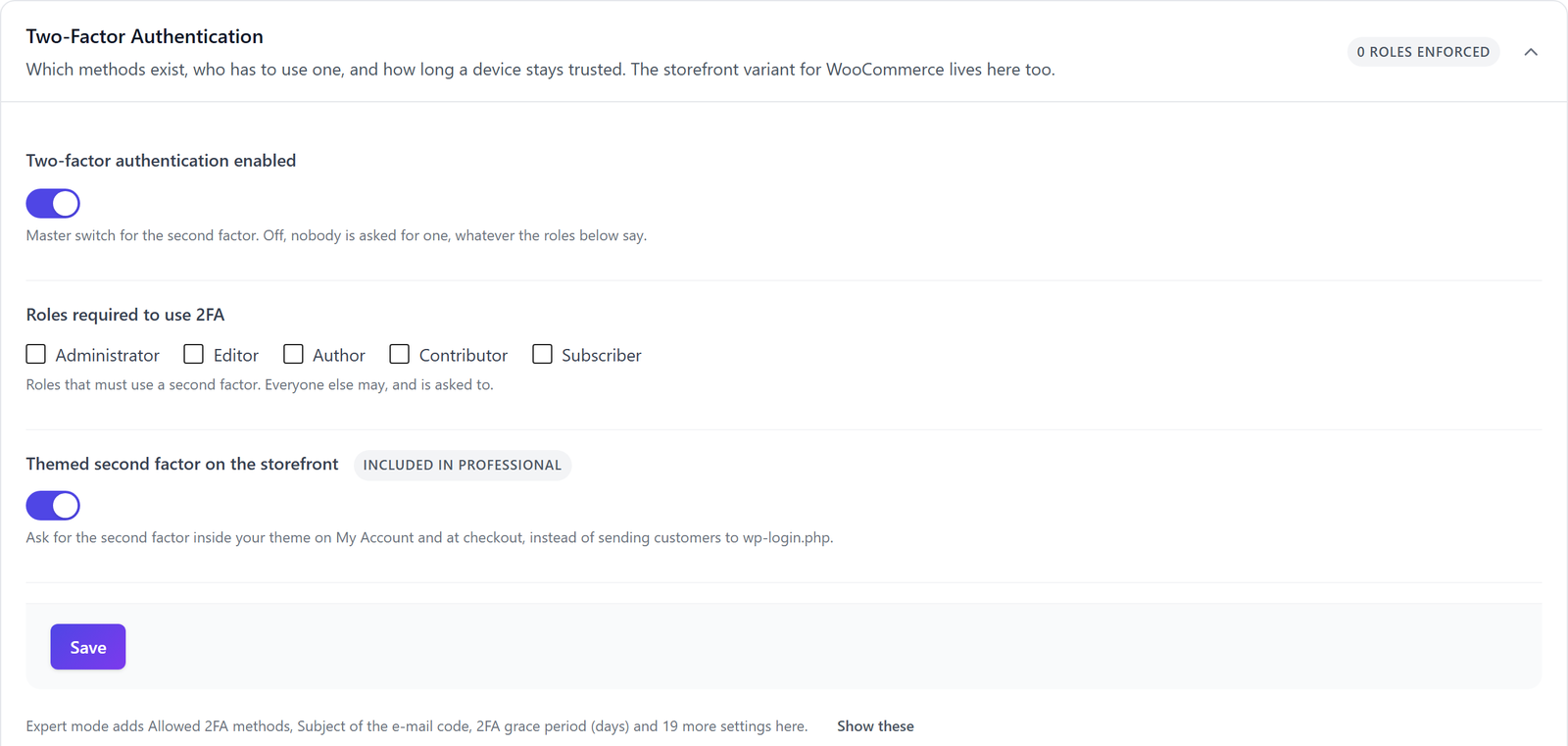
Expert mode in the page header shows further options for shops: whether customers may opt out of 2FA, whether storefront users are sent to the shop-styled setup page, and the addresses of the verification and setup pages if you want your own.
Rolling out 2FA to existing customers
- Start optional: switch on the storefront option but leave the Customer role unticked, so customers can opt in without pressure.
- Announce it in your newsletter or order confirmation with one sentence on why it protects their saved addresses and orders.
- Watch the page 2FA Status with the role filter set to Customer to see how many have set up a method.
- When most regular customers are enrolled, tick the Customer role. The grace period gives the rest time to set up a method before the sign-in insists on it.
Protect shop managers first
Shop managers can see every order and customer, so their accounts are the more valuable target. Tick the Shop manager role under Roles required to use 2FA before you touch customer accounts. Staff sign in through wp-admin and get the standard challenge, and a passkey or authenticator app is the right method for them.
What happens if the plan is downgraded
The shop-styled pages are a Professional feature. If the site moves to a lower plan, WooCommerce logins fall back to the standard WordPress challenge. Customers who already set up a second factor keep it and can still sign in; nobody is locked out because a subscription ended.
Supporting customers who lose their phone
A customer who lost the phone signs in with one of the recovery codes saved during setup. If those are gone as well, a shop administrator resets the second factor of that account, for example with wp reportedip 2fa reset <user_id>, and the customer sets up a new method at the next sign-in. Mention the recovery codes in your welcome e-mail; that single sentence saves most support requests.
Questions about WooCommerce two-factor authentication
Does 2FA at checkout cost sales?
The verification only appears when a customer signs in, not for guest checkout, and the page keeps the shop’s look. After the code, the customer returns to the checkout with the cart unchanged. Trusted devices mean regular customers see the second step only occasionally on their own devices.
Can customers use a passkey instead of a code?
Customers can register a passkey such as Face ID, Touch ID or Windows Hello during setup and confirm the sign-in with it at My Account and at checkout. It is the fastest option for customers and cannot be phished, because the passkey only works on your real shop domain.
Is WooCommerce 2FA available on the free plan?
The shop-styled verification is part of the Professional plan. On the free plan, customers can still use 2FA, but the challenge appears on the standard wp-login.php page. The detection of attacks on the WooCommerce logins is included in every plan.
Do I have to force every customer to use 2FA?
No, forcing it is a choice. Tick the Customer role under Roles required to use 2FA to make it mandatory, or leave it unticked so customers can opt in. Many shops start optional and make it mandatory later, once customers know the feature.
Read on
- All 2FA methods in Hive
- Passkeys for WordPress
- Mail and SMS relay for 2FA
- Hardening Mode under attack
The Hive documentation covers the WooCommerce frontend login and two-factor authentication in detail.