Passkeys for WordPress: Phishing-Resistant Login With WebAuthn

A WordPress passkey login with ReportedIP Hive confirms the sign-in with Face ID, Touch ID, Windows Hello or a fingerprint on the phone, and it only works on your real domain. A fake login page cannot capture anything useful, which makes a passkey the strongest second factor you can give your editors and administrators.
This guide explains what a passkey is, how to add one in the WordPress profile, what the sign-in looks like and how to solve the usual problems. For hardware keys such as the YubiKey there is a separate YubiKey setup guide.
What is a passkey?
A passkey is a key pair created by your device for one website. The private key stays on the device, protected by its lock screen; the website only stores the public key. To sign in, the site sends a random challenge, the device signs it after you look at the camera or touch the sensor, and the site checks the signature. The standard behind it is W3C Web Authentication (WebAuthn), part of FIDO2, and every current browser supports it.
Why can’t a passkey be phished?
An app code or an SMS code is just a number. A convincing fake login page can ask for it and pass it on to the real site within seconds. A passkey is bound to the domain it was created for: the browser tells the device which site is asking, and the device refuses to sign for a look-alike domain. There is no shared secret to steal and no code to relay, so a phishing kit comes away empty-handed.
Passkey or security key: which one to use?
| Option | Best for | Keep in mind |
|---|---|---|
| This device (Face ID / Windows Hello) | Everyday sign-in on your own laptop or phone | Tied to that device or to its synced password manager |
| Security key (USB / NFC) | Shared computers and accounts with the highest rights | A physical key you carry, such as a YubiKey |
Both options use the same standard and the same place in the profile. Passkeys that sync through iCloud Keychain or Google Password Manager are compatible and work on every device signed in to that account. One passkey or key per account is free on every plan; several keys per account, for example a backup key, are part of the Business plan.
What your site needs for passkeys
- HTTPS. Browsers only offer passkeys on secure pages. A plain-HTTP staging site shows the message that the browser does not support security keys.
- OpenSSL in PHP. It is present on practically every host and verifies the signatures.
- Two-factor authentication switched on under Protection, card Two-Factor Authentication. Passkeys are among the Allowed 2FA methods by default.
- A fixed domain. On multisite networks with domain mapping, set the filter
reportedip_hive_webauthn_rp_idbefore users register keys, because keys created for one domain do not work on another.
How to add a passkey in WordPress
- Open your WordPress profile and scroll to Your sign-in methods.
- Under Passkey or security key, click Add security key.
- Give it a name you will recognise later in the Key name field, for example the device it lives on.
- Click This device (Face ID / Windows Hello) for a passkey on the computer or phone you are using, or Security key (USB / NFC) for a hardware key.
- Confirm with your face, fingerprint or PIN when the browser asks. The passkey appears in the list with its type, the date it was added and the date it was last used.
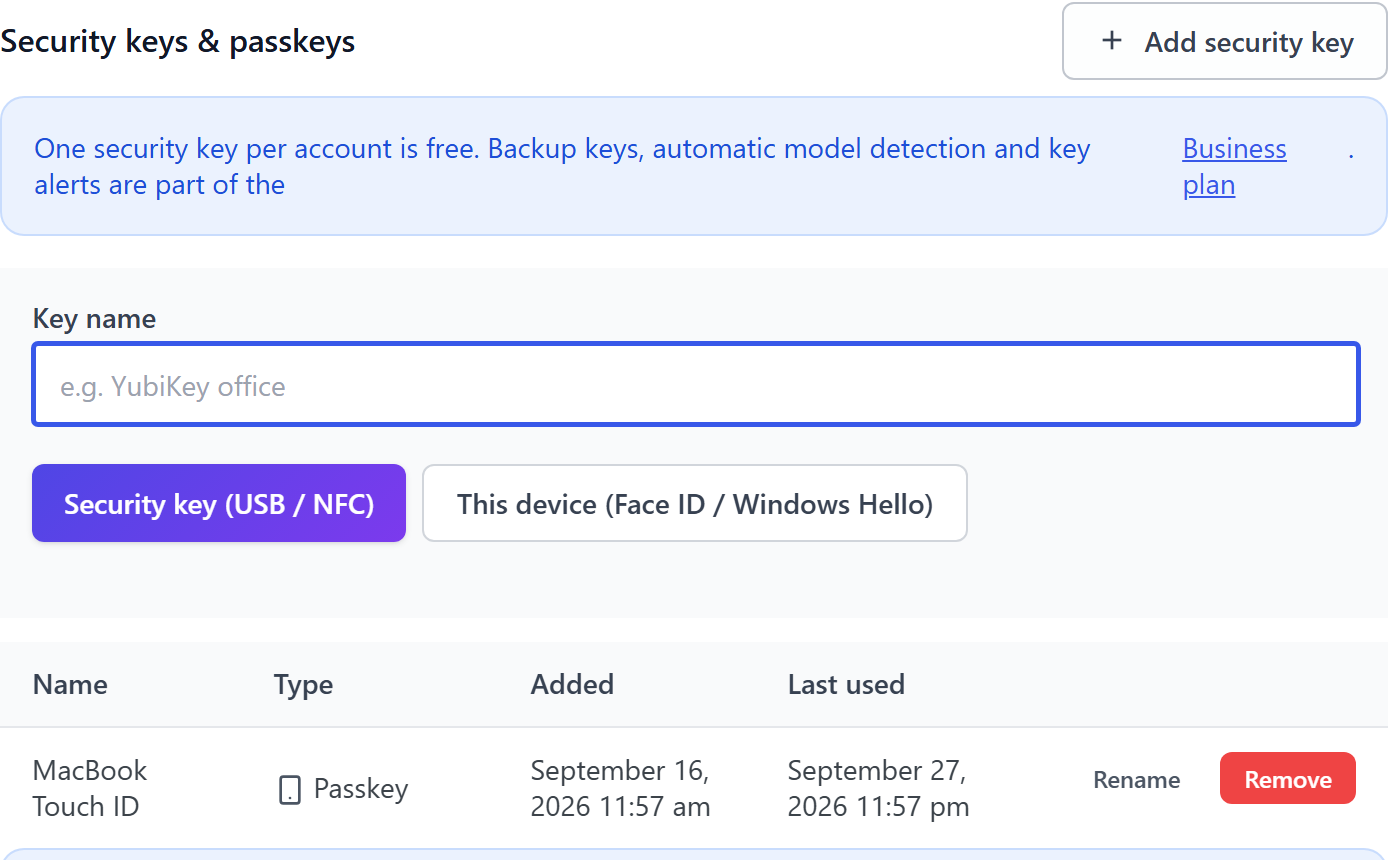
Rename changes the name of a key, Remove deletes it. After registering, save your recovery codes if you have not done so yet: they are the way back in if the device is lost. Make default on the passkey method makes it the first thing the sign-in asks for.
What signing in with a passkey looks like
You enter your username and password as usual. Hive then shows Verification required with the Passkey tab open. Click Use passkey or security key, and the browser opens its own dialog for Face ID, Touch ID, Windows Hello or the key. One touch later you are in.
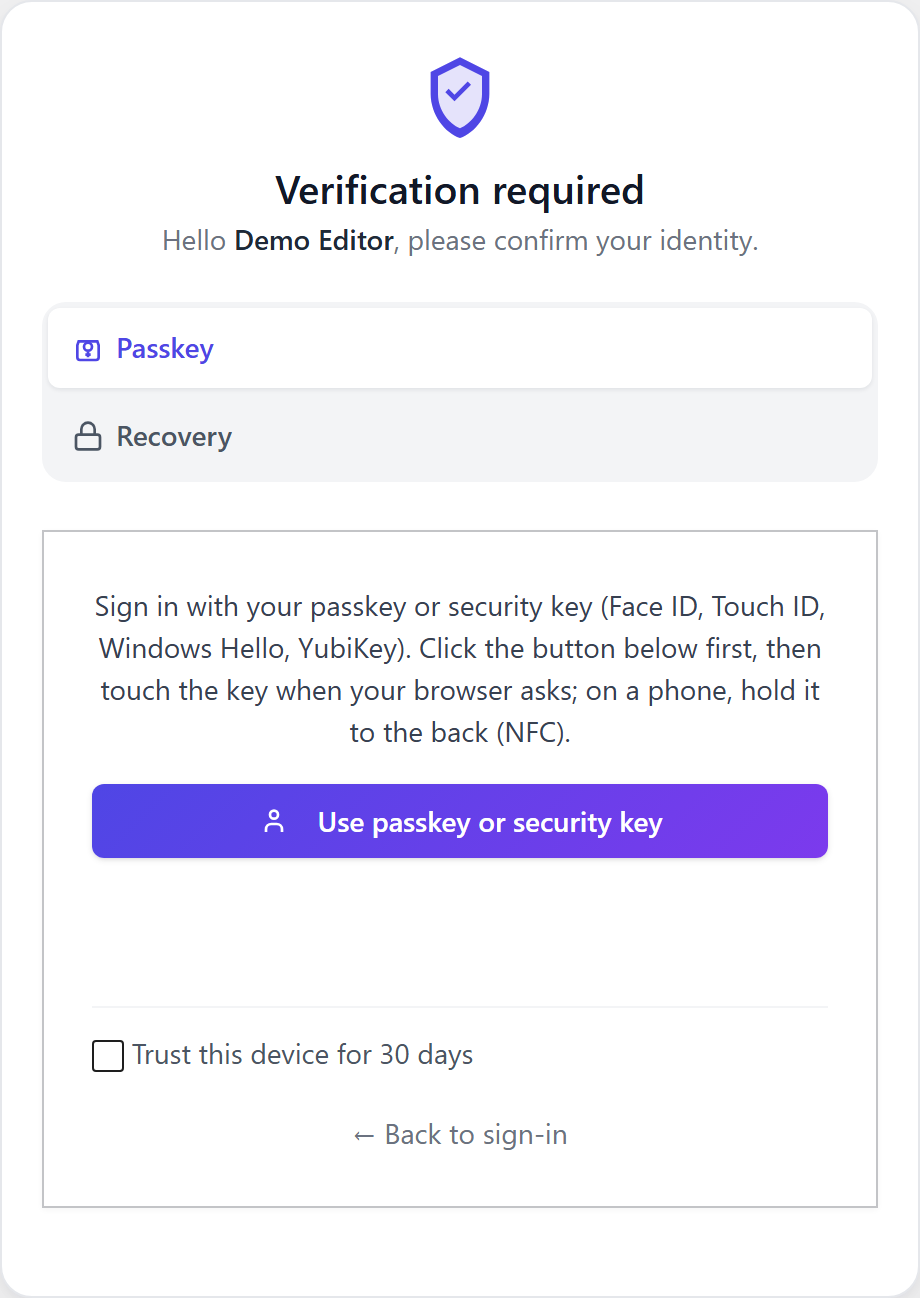
In Hive a passkey is a second factor, not a replacement for the password: the password is checked first, then the passkey. Trust this device skips the second step on that browser for a set number of days. The same passkey step appears on the WooCommerce storefront login on the Professional plan and on the password reset gate, where a passkey counts as a factor that is not e-mail.
Copied keys are detected
Every signature carries a counter that a real key increases with each use. If the counter goes backwards, the credential has most likely been copied out of its hardware. Hive then refuses the sign-in, records a security event and informs the account owner. Passkeys that legitimately report no counter, as many synced passkeys do, keep working.
Rolling out passkeys to a whole team
Tick the roles that must use a second factor under Roles required to use 2FA, and every member of those roles is asked to set one up at the next sign-in, with a grace period to do it. Recommend the passkey in your team announcement: it takes a minute to add and nobody has to type codes afterwards. The page 2FA Status shows who is still missing, and its filter by method lists exactly who signs in with a passkey. For administrators on the Business plan, a second key per account stored in a safe place removes the last single point of failure.
Troubleshooting passkey problems
| Message or symptom | Cause and fix |
|---|---|
| This browser does not support security keys | The page is not served over HTTPS. Switch the site to HTTPS. |
| The request timed out or was cancelled | The browser dialog was closed or not confirmed in time. Click the button again. |
| The domain of this page does not match the key registration | The key was created on another domain, for example staging. Register it again on the live domain. |
| This key is already registered on this account | The same device or key is already in the list. Nothing to do. |
| Windows Hello opens instead of the YubiKey | Use the button Security key (USB / NFC) instead of This device. |
Sites that want the device to always ask for face, fingerprint or PIN can raise the user verification setting with the filter reportedip_hive_webauthn_user_verification. By default a touch is enough, because the password already covers the first factor.
Questions about passkeys in WordPress
Can I sign in to WordPress with a passkey alone, without a password?
ReportedIP Hive uses the passkey strictly as a second factor: the password is checked first, then the passkey. Passwordless sign-in is a different security model with other recovery questions, and treating a second factor as a replacement for the password would weaken the account instead of strengthening it.
What happens if I lose the device with my passkey?
Sign in with one of the 10 recovery codes you saved during setup, then remove the lost passkey from the list in your profile and add one on the new device. If the recovery codes are gone too, an administrator can reset your second factor with the WP-CLI command of the plugin.
Do synced passkeys from iCloud or Google work?
Passkeys stored in iCloud Keychain or Google Password Manager are compatible and can be registered with the button This device. They are then available on every device signed in to the same Apple or Google account, which also protects you against losing a single phone.
Can I use a passkey from my phone to sign in on a computer?
Current browsers offer to use a phone nearby: the computer shows a QR code, you scan it and confirm on the phone. For this to work, the passkey on the phone must have been registered on the site, and both devices need Bluetooth switched on for the proximity check.
Read on
The Hive documentation covers two-factor authentication and hardware security keys setting by setting.