Hardening Mode: Auto-Tightening WordPress Defences Under Coordinated Attack
Hardening Mode in ReportedIP Hive defends WordPress against coordinated attacks: when many addresses attack the login together, it tightens the login and reputation limits for the whole site until the wave is over. A botnet that spreads its attempts thin to stay under the limit for each single address is stopped mid-flight.
This guide explains what Hardening Mode detects, what changes while it is active, how you see it and how you control it. The feature is part of the Professional plan.
What is a coordinated attack on WordPress?
A classic brute-force attack comes from one address and trips the failed-login sensor quickly. A coordinated attack comes from hundreds or thousands of addresses at once, each trying only a few passwords. Every single address stays below the limit, so per-address protection never fires, while the site as a whole receives thousands of guesses. MITRE ATT&CK describes credential stuffing (T1110.004) as one common form: leaked username and password pairs tested across many sites through rotating addresses.
How does Hardening Mode detect the attack?
Hive watches the whole site, not just single addresses. It recognises two patterns:
- A burst: many different addresses fail to log in within the same short moment.
- A distributed wave: enough different addresses add up over a longer rolling window, the typical pattern of a botnet that rotates its addresses slowly.
The check runs in real time inside the login, so Hive reacts within the attack instead of after it. A background task repeats the check as a safety net. Failed logins on wp-login.php, on the WooCommerce My Account and checkout logins and through application passwords all count.
What changes while Hardening Mode is active
- The failed-login limit gets stricter. Fewer wrong passwords are enough for a block, so each address of the botnet is refused after very few tries.
- The reputation limit drops. Addresses that the community network already knows are refused from a lower confidence score, so borderline addresses of the same wave are kept out too.
- The stricter value always wins. If your own settings are already stricter than the hardening values, they stay in force. Hardening Mode never loosens anything.
The window lasts for the configured duration. If the attack continues, Hive extends it; once the wave is over, the normal limits return on their own. Real users notice little: whoever types the correct password gets in as usual, only repeated wrong guesses are punished faster.
How to see that Hardening Mode is active
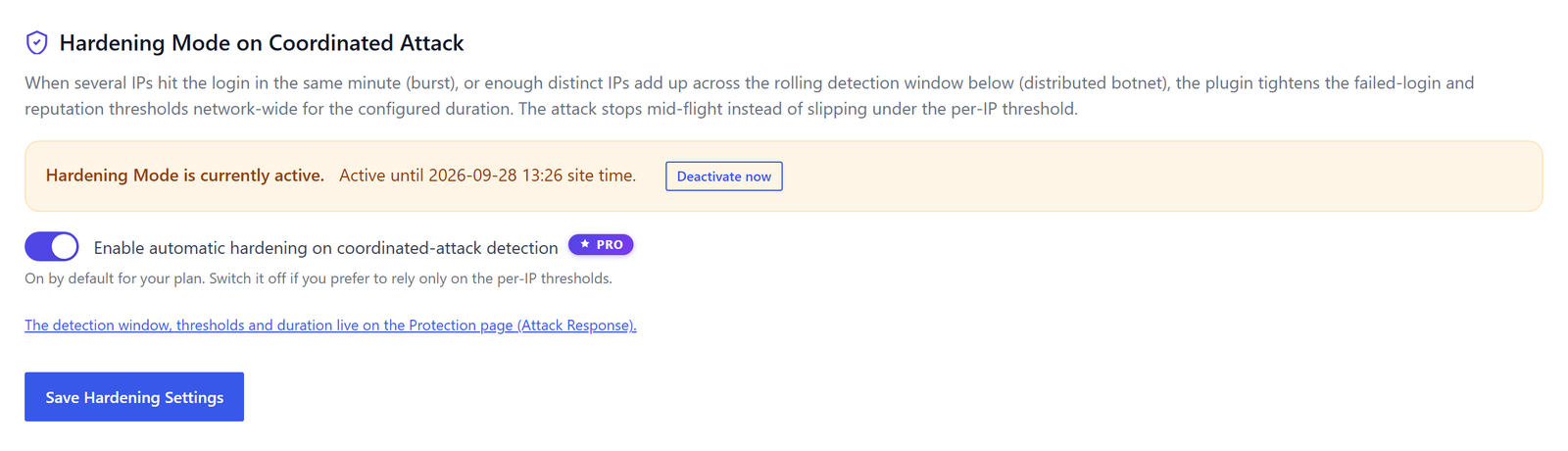
While a hardening window runs, administrators see a red Hardening Mode entry in the WordPress admin bar with the time until which it lasts and a link to the settings. On the page Tools, tab Rules, the section Hardening Mode on Coordinated Attack shows the same state with a Deactivate now button.
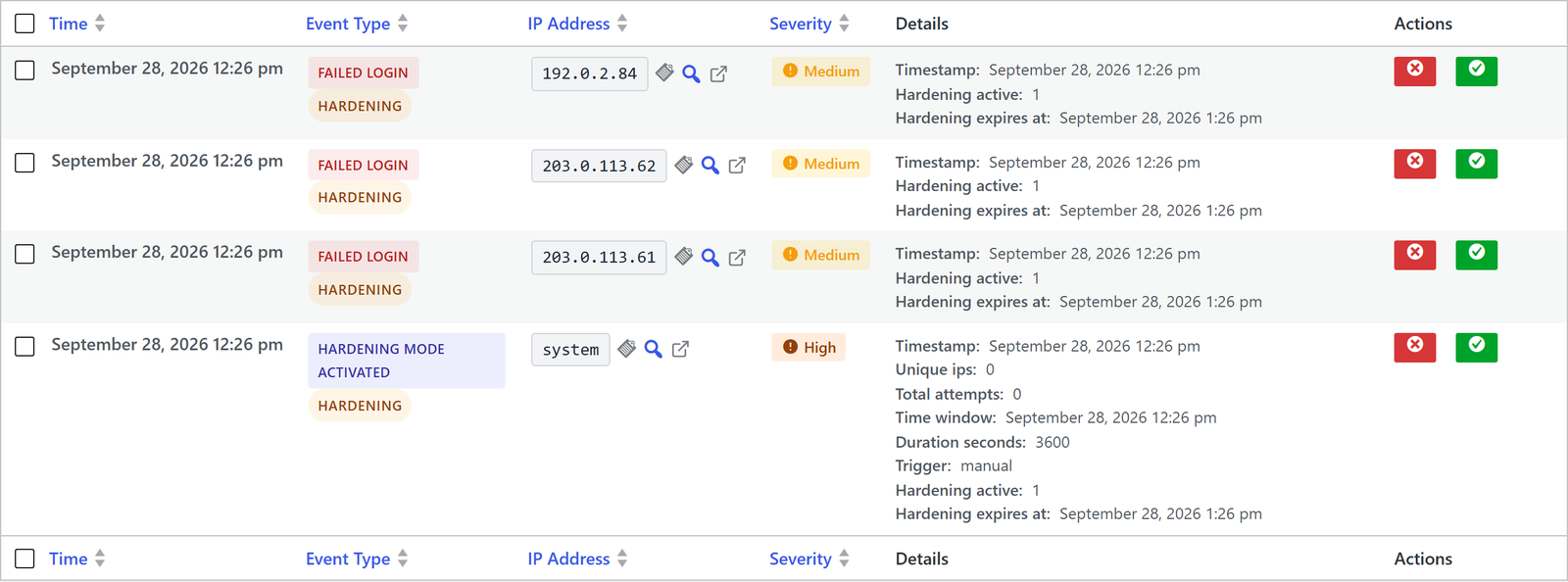
Every event recorded during the window carries a Hardening badge in the Event Log, and the filter During Hardening only shows exactly what happened while the stricter limits were in force. The start of each window is logged as Hardening Mode Activated with high severity.
How to set up and control Hardening Mode
On the Professional plan and above, Hardening Mode is switched on by default and needs no setup. The master switch Enable automatic hardening on coordinated-attack detection sits on the page Tools, tab Rules, for anyone who wants to rely on the limits per address alone.
The details live on the Protection page in the card Attack Response. In the normal view it runs on the recommendation; expert mode shows the individual settings, among them Hardening duration (minutes), the failed-login and reputation limits during hardening and the settings of the distributed-attack detection.

Hardening Mode does not need Community Network. In Local Shield the stricter login limit applies as well; the reputation part only takes effect where the site asks the community network about addresses.
Start and stop it from the command line
Agencies and hosts with shell access control Hardening Mode with WP-CLI: wp reportedip hardening status shows whether a window is active and until when, wp reportedip hardening activate --minutes=120 starts one by hand, for example during a known attack campaign, and wp reportedip hardening deactivate ends it. Each activation and deactivation is logged with its trigger: automatic, admin, command line or expiry.
Events for monitoring and alerting
The events coordinated_attack_detected, hardening_mode_activated, hardening_mode_extended and hardening_mode_deactivated appear in the Event Log, so a monitoring that reads the log can alert your team when a wave starts. On a multisite network, one hardening window covers every site of the network.
What to do while a wave is running
Hardening Mode handles the attack on its own, but a wave is a good moment to check the rest of the setup:
- Open the Event Log with the filter During Hardening only and look at the usernames that were tried. If real account names show up, those accounts are the target.
- Check on the page 2FA Status that every administrator and editor has a second factor. A botnet that guesses the right password still fails at the second step.
- Make sure the office network and your monitoring are on the whitelist, so a stricter limit cannot hit your own team.
- If your site does not use XML-RPC, switch it off with the setting Disable XML-RPC on the Protection page; many waves try passwords through that interface as well.
- After the wave, rename or remove accounts with guessable names such as admin, and ask users with weak passwords to change them.
Other sites benefit from your wave
In Community Network mode, every address that Hive blocks during the wave is reported to the network in anonymised form. The same botnet usually attacks many sites in parallel, so the addresses your site catches in the first minutes help other sites refuse them before their own limits are even reached.
Questions about Hardening Mode
Can Hardening Mode lock out real users?
Users who enter the correct password sign in as usual during a hardening window. Only repeated wrong passwords from the same address lead to a block sooner than normal. Addresses on the whitelist are never blocked, so your office network and your own monitoring stay unaffected.
How long does a hardening window last?
It lasts for the duration set in the card Attack Response and is extended automatically while the attack continues. Once the wave has passed, the normal limits return without any action. An administrator can end the window early with Deactivate now or with the WP-CLI command.
Does Hardening Mode also protect WooCommerce logins?
Failed logins on the WooCommerce My Account page and at checkout count towards the detection, and the stricter limits apply there as well. The same is true for application passwords, which attackers use to get around the normal login form.
Is Hardening Mode available on the free plan?
Hardening Mode is part of the Professional plan and higher, where it is switched on by default. On the free plan the per-address sensors and the progressive block ladder protect the login, and the quickstart lists Hardening Mode among the items a Professional key adds.
Read on
- Progressive IP blocking
- The 16 attack sensors
- Community threat intelligence
- WooCommerce 2FA in your theme
The Hive documentation covers the block escalation and the WP-CLI commands in detail.