WordPress Attack Detection: The 16 Sensors in ReportedIP Hive
WordPress attack detection in ReportedIP Hive rests on 16 sensors that watch logins, comments, XML-RPC, the REST API, 404 traffic, registrations and forms, each on its own signal. All 16 are included in the free plan and run without any outside connection, so a fresh install is watched from the first request.
This guide lists every sensor with the attack it catches, shows where you adjust it, and explains how a single suspicious request turns into a block without locking out real visitors or search engines.
How do attack detection sensors work in WordPress?
Most sensors count events per IP address over a short, rolling window. A failed password, a comment caught as spam or a request for a page that does not exist adds to the count of the address that sent it. When an address crosses the limit for that sensor, Hive first slows it down, then blocks it, and in Community Network mode reports it to the shared network in anonymised form.
A few sensors do not count at all but judge a single request: the firewall reads its payload, bot verification checks whether a crawler is who it claims to be, and the form execution proof asks whether the form was ever rendered in a browser. Password guessing, the pattern MITRE ATT&CK lists as Brute Force (T1110), is only one of the attacks covered.
The 16 sensors and what each one catches
The names in the second column are the setting names on the Protection page; the last column is the card that holds the setting.
| # | Sensor | What it catches | Card |
|---|---|---|---|
| 1 | Monitor failed logins | Repeated wrong passwords from one address | Detection & Thresholds |
| 2 | Password spray threshold | Many different usernames tried from one address | Detection & Thresholds |
| 3 | Monitor comment spam | Spam comments from one address, including hits on the invisible comment honeypot | Detection & Thresholds |
| 4 | Monitor XML-RPC abuse | Password guessing and pingback abuse through XML-RPC | Detection & Thresholds |
| 5 | Monitor application passwords | Basic-Auth attempts that try to get around two-factor login | Detection & Thresholds |
| 6 | Monitor REST API bursts | Request floods against the REST API, with stricter limits on sensitive routes | Detection & Thresholds |
| 7 | Block user enumeration | Attempts to read out usernames, and login errors that would confirm one | Detection & Thresholds |
| 8 | Monitor 404 scans | Scanners that probe for files and plugins, together with decoy path blocking | Detection & Thresholds, Firewall & Bots |
| 9 | Firewall enabled | SQL injection, cross-site scripting, path traversal and command injection | Firewall & Bots |
| 10 | Bot verification | Crawlers that fake the user agent of Googlebot, Bingbot or another search engine | Firewall & Bots |
| 11 | Registration rules | Throwaway mail domains, forbidden usernames and sign-up floods | Registration Rules |
| 12 | Form execution proof | Form submissions from bots that never rendered the form | Form Protection |
| 13 | Community threat check on forms | Known attacker addresses on comments, sign-ups and password resets | Form Protection |
| 14 | Monitor country and network changes on login | A login from a country never seen for that user | Detection & Thresholds |
| 15 | Password policy | Weak passwords and passwords known from data breaches | Password Policy |
| 16 | Monitor WooCommerce login forms | Attacks on the checkout and My Account logins | Detection & Thresholds |
The count of 16 follows the feature list of the plugin: password spray is its own sensor, and decoy paths count together with the 404 scan detection as one.
The dashboard shows which sensors are active
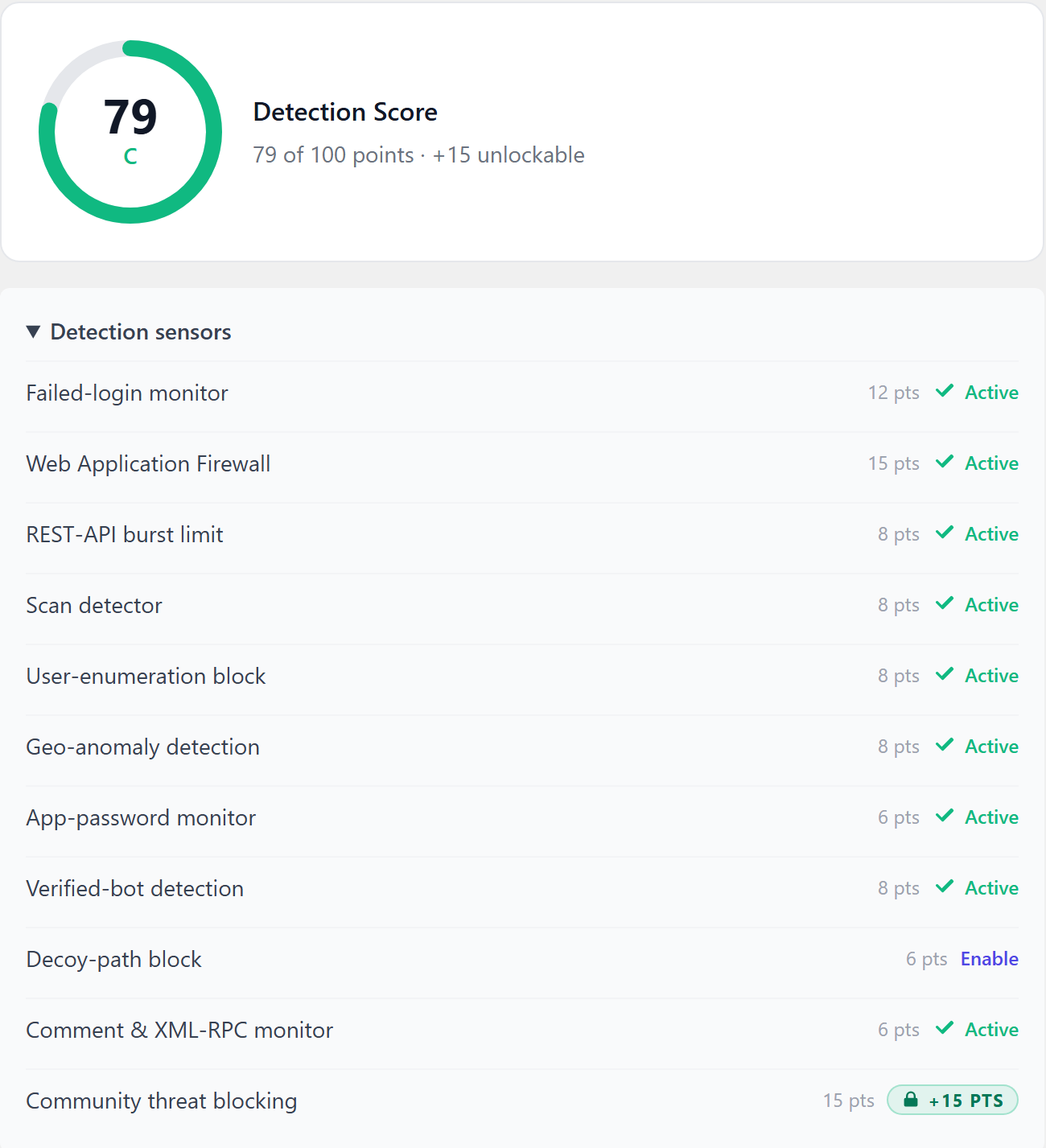
On the Security Dashboard, the Detection Score sums up the active sensors. Open Detection sensors below it to see each one with its points, a green Active mark, an Enable link for anything that is switched off, and the points that a higher plan would add.
How to set the sensitivity with protection levels
You rarely need to touch a single limit. Open Protection, card Detection & Thresholds, and pick a Protection level: Relaxed, Balanced, Strict or Paranoid. One click sets the failed-login limit and window, the block duration and the community protection level together. Balanced is the default the quickstart applies.
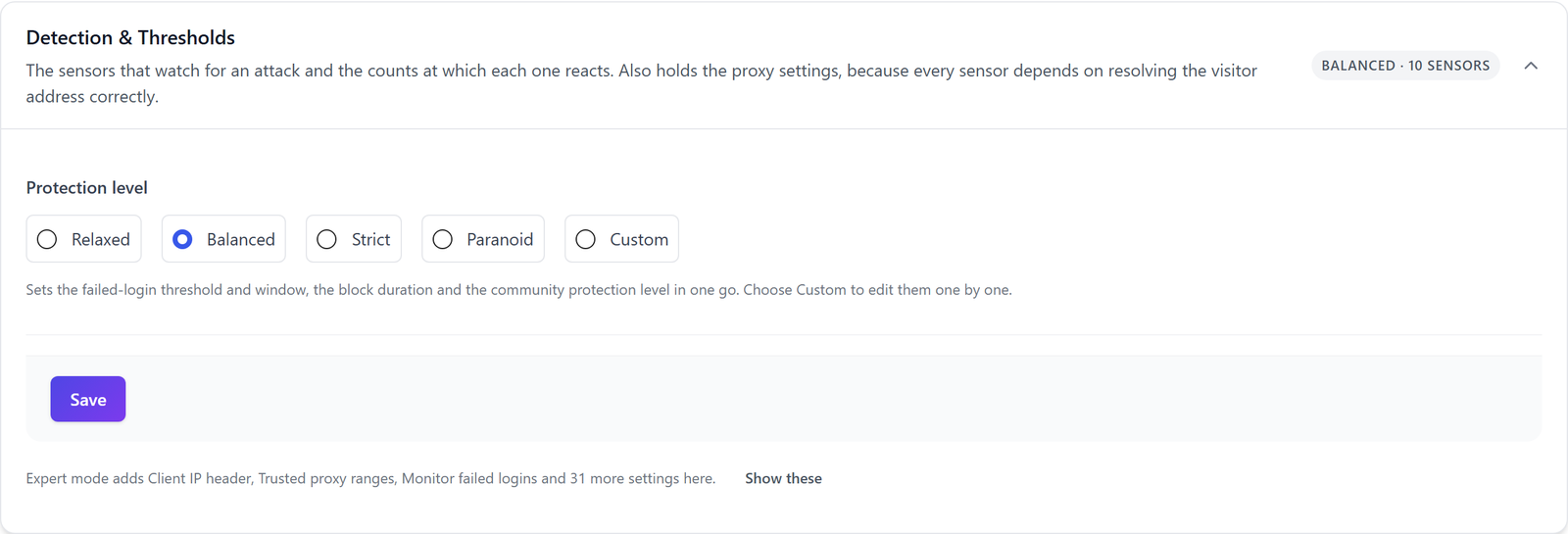
Choose Custom, or turn on expert mode in the page header, to edit every sensor on its own. Expert mode also shows the switches that turn single sensors on or off and the proxy settings, which matter because every sensor depends on reading the real visitor address behind a CDN or load balancer.
How counting turns into a block
- The brute-force sensors share one throttle: repeated failures first cost the address a short pause, which grows with every further failure.
- If the attempts continue, the address becomes a real block on the site.
- Repeat offenders climb the escalation ladder in the card Blocking & Escalation, so each new block lasts longer than the last.
- In Community Network mode Hive queues an anonymised report, and the address becomes known to every other site in the network.
With Report-only mode switched on in the same card, every step is logged but nothing is blocked. That is the safe way to try a stricter protection level on live traffic first.
Which sensors are included in which plan?
All 16 sensors are part of the free plan. The paid plans deepen some of them rather than adding new ones:
| Plan | What it adds to the sensors |
|---|---|
| Free | All 16 sensors with the bundled firewall rules |
| Professional | Deeper firewall rule sets through Priority Sync |
| Professional | Live lists of decoy paths and throwaway mail domains |
| Professional | Unlimited registration rules with regular expressions |
| Business | Form protection for WPForms, Gravity Forms, Forminator, Formidable, Elementor and Ultimate Member |
Local Shield runs 15 of the 16 sensors. The community threat check on forms needs Community Network, because it asks the network about the address.
Why search engines and AI crawlers are not blocked
A crawl over old links produces 404 errors and REST bursts that look like a scan. With Exempt verified crawlers from auto-blocking in the Firewall & Bots card, Hive does not count those requests and never blocks the crawler automatically, but only for crawlers it has verified. Verification checks the official IP ranges of Googlebot, Bingbot, Applebot and others, or confirms the host name by forward-confirmed reverse DNS. A user agent alone is not enough, so a scanner that calls itself Googlebot is treated like any other scanner.
The exemption stops where a verified crawler has no business. Login and other credential sensors, decoy paths, the firewall payload checks and the sensitive REST routes apply to every address.
Where to see what the sensors caught
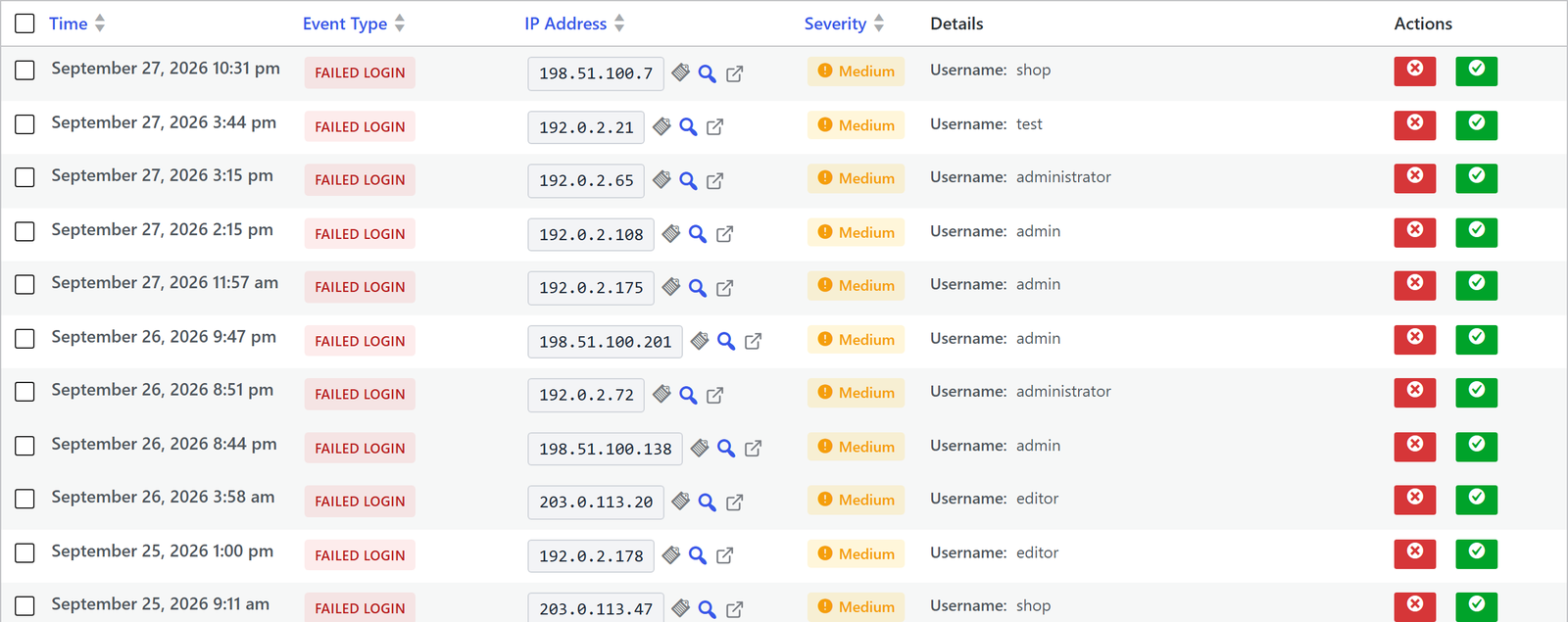
Every hit lands in Activity, tab Event Log. Filter by event type, severity and date, or search for an address. Each row links to a lookup of the address and offers to block it or to put it on the whitelist.
Questions about WordPress attack detection
Do the sensors slow down my WordPress site?
The sensors only act when their event happens, such as a failed login, a comment or a 404 response, so a normal page view does not touch most of them. Counters are kept per address and expire on their own, which keeps the stored data small even on a site under steady attack.
Can I switch off a single sensor?
Turn on expert mode in the page header and open the Protection page. Most counting sensors have their own switch in the Detection & Thresholds card; the firewall, registration, form and password sensors sit in the cards Firewall & Bots, Registration Rules, Form Protection and Password Policy. The Detection Score on the dashboard drops by the points of the sensor you switch off.
Does attack detection work without the community network?
Local Shield runs 15 of the 16 sensors on your own server without any outside connection. Only the community threat check on forms needs Community Network, because it compares visitor addresses with the reports of other sites. Blocks based on community reputation are also a Community Network feature.
How do I stop the sensors from blocking my own team?
Put the office network, your VPN and monitoring services on the whitelist under Activity, tab IP Lists. Whitelisted addresses are never counted or blocked. If your site sits behind Cloudflare or a load balancer, also check the proxy settings, otherwise every visitor shares the address of the proxy.
Read on
The Hive documentation describes the attack sensors, the block escalation and the crawler verification setting by setting.