WordPress Web Application Firewall: How Hive Blocks Attacks

The WordPress firewall in ReportedIP Hive checks every request for injection, cross-site scripting and path traversal before a plugin or theme can act on it. This guide explains what it inspects, where the rules come from, how to clear a false positive without touching code and when the optional Extended Protection before WordPress is worth switching on.
What does a web application firewall do for WordPress?
A web application firewall (WAF) reads the content of a request, not just its origin. Where an IP block asks “who is knocking?”, the WAF asks “what are they sending?”. A request that carries UNION SELECT in a query parameter or ../../wp-config.php in a file name is refused, even when it comes from an address nobody has reported yet.
That closes the gap between a new vulnerability in a plugin and its update. Most attacks on WordPress target known flaws in plugins, and they use the same handful of techniques the OWASP Top 10 has listed for years. A firewall that recognises those techniques protects a site even while an update is still pending.
What the Hive firewall inspects on every request
The firewall is one of the 16 sensors of ReportedIP Hive and runs very early while WordPress loads. Addresses that are already blocked are turned away before it, so it only inspects what is left. It checks the request address with its query string, the request body including JSON and the user agent.
The free baseline that ships with the plugin covers seven attack categories:
- SQL injection
- Cross-site scripting, including HTML injection
- Path traversal
- Command injection
- Probes for sensitive files such as configuration backups
- Known scanner user agents
- Abuse of the REST API batch endpoint
With Priority Sync on the Professional plan and above, further categories come in through the rule feed, among them server-side request forgery, Log4Shell, PHP object injection, XML external entities, web shell uploads, CRLF and template injection.
Signed-in users who can edit posts, from contributors to administrators, are not inspected, because page builders and editors legitimately send markup and code. The admin area is skipped as well, with one exception: anonymous requests to the AJAX and form endpoints are still checked. Whitelisted IPs, cron jobs and WP-CLI pass without inspection.
What happens when a request matches a rule
A match ends the request with the Hive block page and a reference code such as WAF_SQLI-3F9A2B71. The page is cache-safe, so a caching plugin cannot hand the attacker a stored copy of a normal page. The code is also sent as the X-RIP-Ref header. It is built from the IP, the reason and the hour in a one-way hash and contains no personal data.
Repeated matches from the same address lead to an IP block through the progressive block ladder. Unambiguous attacks such as path traversal, command injection or a web shell upload block the address on the first match. SQL injection and cross-site scripting need several matches, because they produce the most false positives. In Community Network mode, the block is shared with the community.
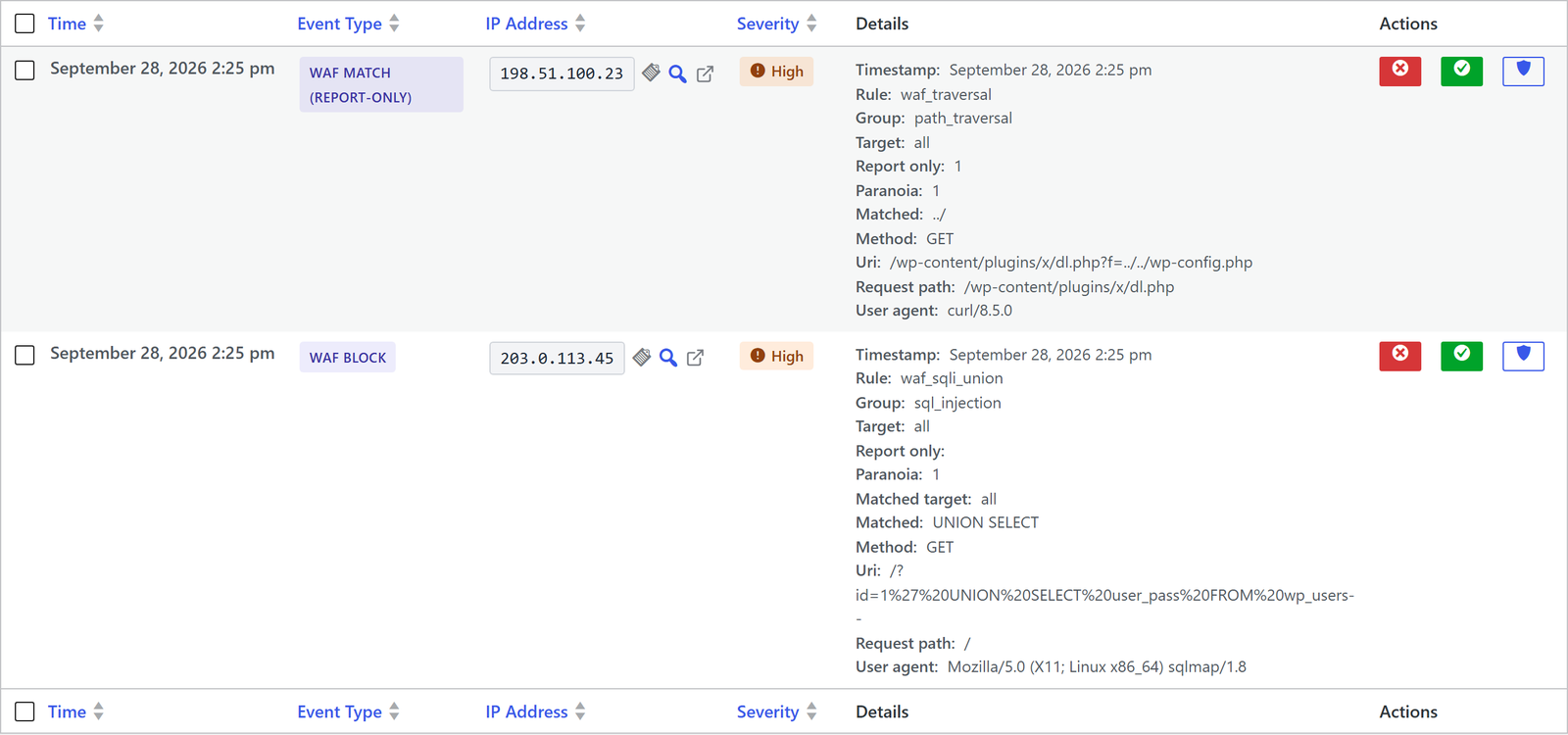
Every match lands in the Event Log under ReportedIP Hive > Activity with the rule, the rule group, the matched text, the method and the user agent. If you want to watch before you block, switch on Firewall report-only in the Firewall & Bots card: matches are then logged as “WAF Match (report-only)” and the request passes.
Where the firewall rules come from
The baseline rules are part of the plugin, so the firewall works fully offline in Local Shield mode, without an account. In Community Network mode with a key, Hive can also fetch rulesets from the reportedip.com Rule API. There are five: WAF signatures, verified-bot identities, disposable e-mail domains, scanner probe paths and Tor exit nodes. You see them with version, rule count and source under ReportedIP Hive > Tools, tab Rules.
Every ruleset is signed. Hive checks the signature with a key stored in the plugin before it applies a single rule. A manipulated or damaged feed is rejected, the last verified ruleset stays active, and if there is none, the baseline takes over. The firewall never depends on a live connection.
The depth of the rules follows the paranoia level model of the OWASP Core Rule Set:
| Level | Character | Plan |
|---|---|---|
| 1 | Baseline with few false positives | Every plan, including Free |
| 2 | Stricter, more categories | Professional and above |
| 3 | Rare and obfuscated attacks, opt-in | Professional and above |
Levels 2 and 3 need Priority Sync, which delivers the full rulesets daily. The level is set with Firewall paranoia level in the Firewall & Bots card on the Protection page.
How a faulty rule is kept from taking the site down
Rules that arrive from a feed are a risk of their own: a badly written regular expression can take a server’s CPU for seconds per request. Hive guards against that in several ways. Each rule runs within a fixed time budget. A rule that fails lets the request pass instead of blocking it, and the plugin logs a warning about it. Large request bodies are read only up to a limit. And on the server side, every new rule is checked automatically for dangerous patterns before it is signed and delivered.
How to clear a false positive without code
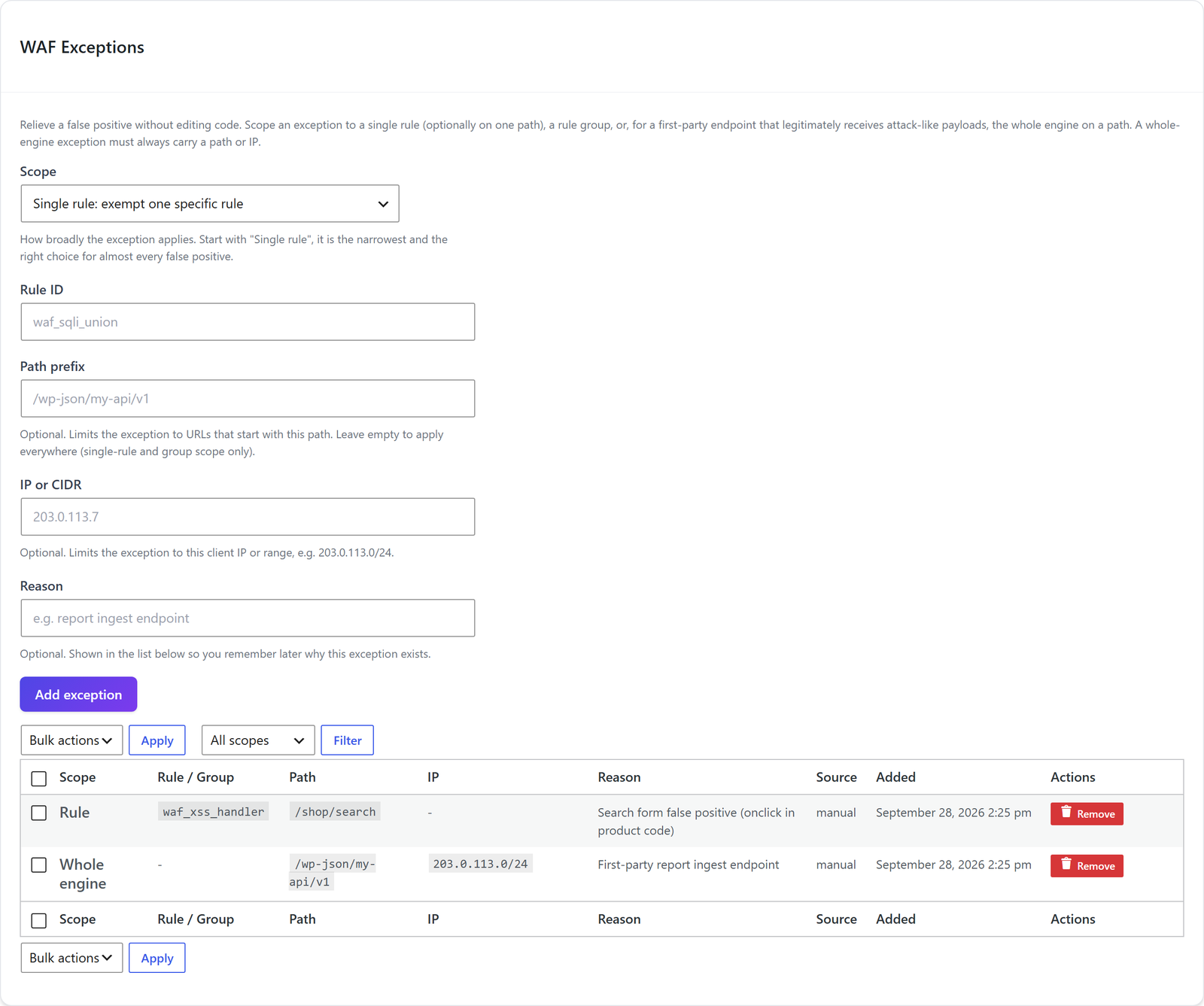
Every signature firewall sometimes flags a legitimate request, for example a search form that accepts code snippets or your own API that receives attack samples. Hive handles that with WAF exceptions, available on every plan.
Step 1: find the event
Ask the visitor for the reference code and the time. Open ReportedIP Hive > Activity, Event Log, filter by the event type WAF Block and find the entry by IP, time and rule. The reference code itself is not stored in the log.
Step 2: allow the rule
Click the shield button in the row, labelled “Allow this rule on this path (WAF exception)” on hover. Hive creates an exception for exactly that rule. The path is only included if the log recorded it, which is not the case while Minimal logging is on, the default. Without a path the exception applies to the whole site, so narrow it down in the next step.
Step 3: review the exception
All exceptions are listed in the card WAF Exceptions under Tools > Rules. There you can also add one by hand. The Scope decides how wide it reaches: a single rule, a rule group, or the whole engine. A whole-engine exception must carry a path prefix or an IP range, so the firewall cannot be switched off for the entire site by accident. The Tools menu appears in Expert mode; without it, the button Manage rules and exceptions in the Firewall & Bots card leads there.
Extended Protection: blocking before WordPress loads
The regular firewall runs inside WordPress. Extended Protection adds a small guard that PHP runs before WordPress and before any plugin code. It refuses matching requests and blocked IPs earlier and with less server load. It is off by default and free on every plan.
You switch it on under ReportedIP Hive > Tools, tab Server, with Enable extended protection. On Apache and on PHP-FPM, which includes most nginx setups, Hive writes the required server setting itself. Where that is not possible, the Server Setup shows a line for php.ini or the nginx configuration to paste. The status shows Running as soon as the guard has run for a request, so you do not have to guess whether the setup worked.
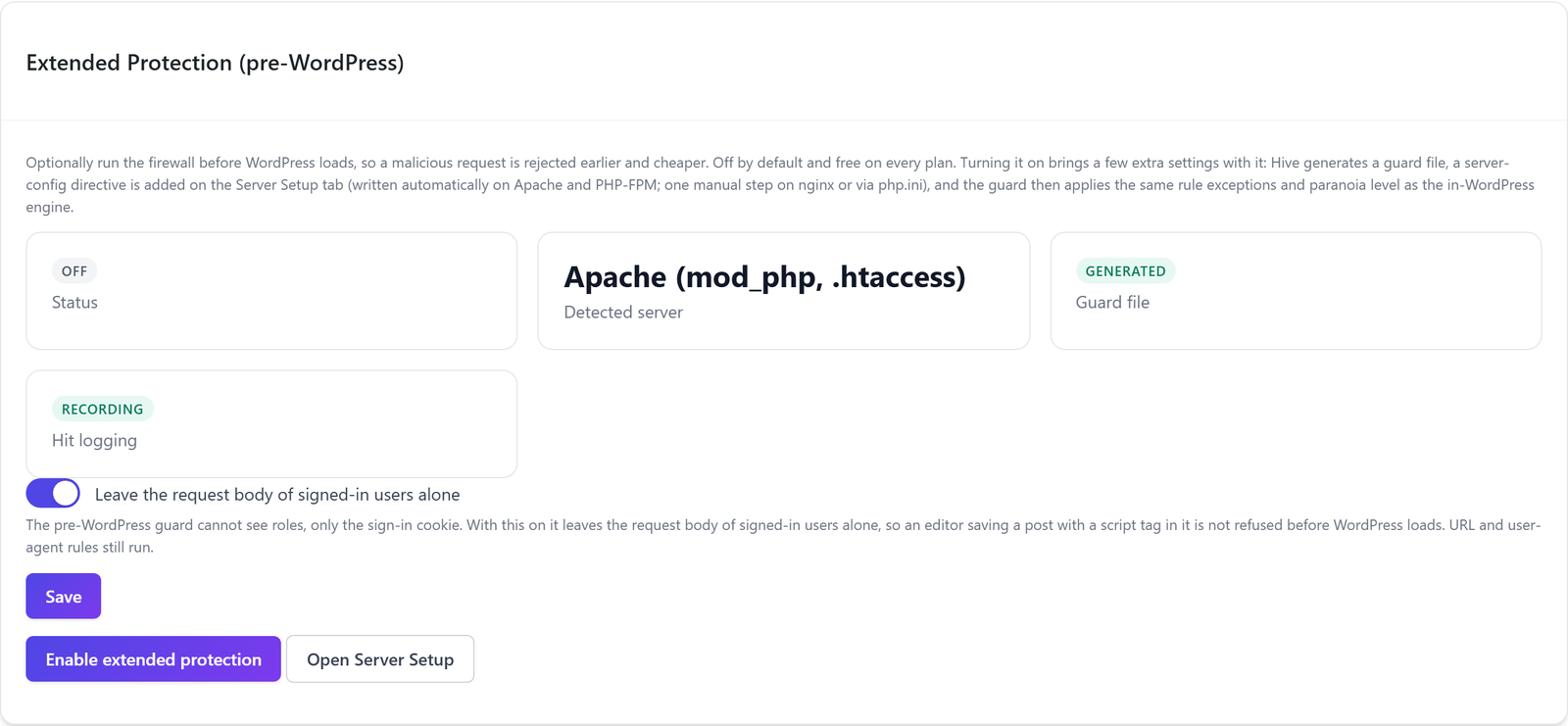
Three things are different from the regular firewall. The guard cannot see WordPress roles, only whether someone is signed in; with Leave the request body of signed-in users alone, on by default, it skips the body of signed-in users so an editor saving a post is not refused. The guard applies the same exceptions and paranoia level as the regular firewall. And a visitor it refuses sees a plain page with the word “Forbidden”, without the designed block page, reference code or contact button. The match still appears in the Event Log with rule, time and IP.
Deactivating the plugin removes the settings Hive wrote itself and leaves a harmless placeholder file, so a server setting you added by hand cannot break the site. Remove such a line yourself after uninstalling.
Questions about the WordPress firewall
Is the Hive web application firewall free?
The firewall engine, the baseline rules for seven attack categories, WAF exceptions and Extended Protection are free on every plan and work offline in Local Shield mode. The Professional plan adds Priority Sync with daily full rulesets, stricter paranoia levels and further categories such as SSRF, Log4Shell and XXE.
Will the firewall block editors working in WordPress?
Signed-in users who can edit posts are not inspected by the regular firewall, and the admin area is skipped. With Extended Protection, the body of signed-in users is left alone by default. If a front-end form or your own endpoint trips a rule, a WAF exception for that rule and path solves it without code.
Does the firewall work on nginx?
The regular firewall works on every server because it runs inside WordPress. For Extended Protection on nginx with PHP-FPM, Hive writes the server setting automatically. If your host does not allow that, the Server Setup shows a line for php.ini or the nginx configuration to add by hand.
What happens if the rule server cannot be reached?
Nothing stops working. Hive keeps the last verified ruleset and falls back to the baseline rules in the plugin if there is none. The next sync tries again. Because every ruleset is signed and checked before use, a manipulated feed cannot change the rules either.
Read on
The Hive documentation covers the firewall and rule delivery and WAF exceptions in detail. All other features are explained in the ReportedIP Hive plugin guides.